The reason I got into split keyboards is simple: my back muscles were always tense. On a regular keyboard my hands sit close together, and my shoulders end up pulled forward and in all day. And when my back is tight all day, I tend to feel more on edge too. With the two halves apart, my hands can rest at shoulder width, which feels a lot more relaxed.
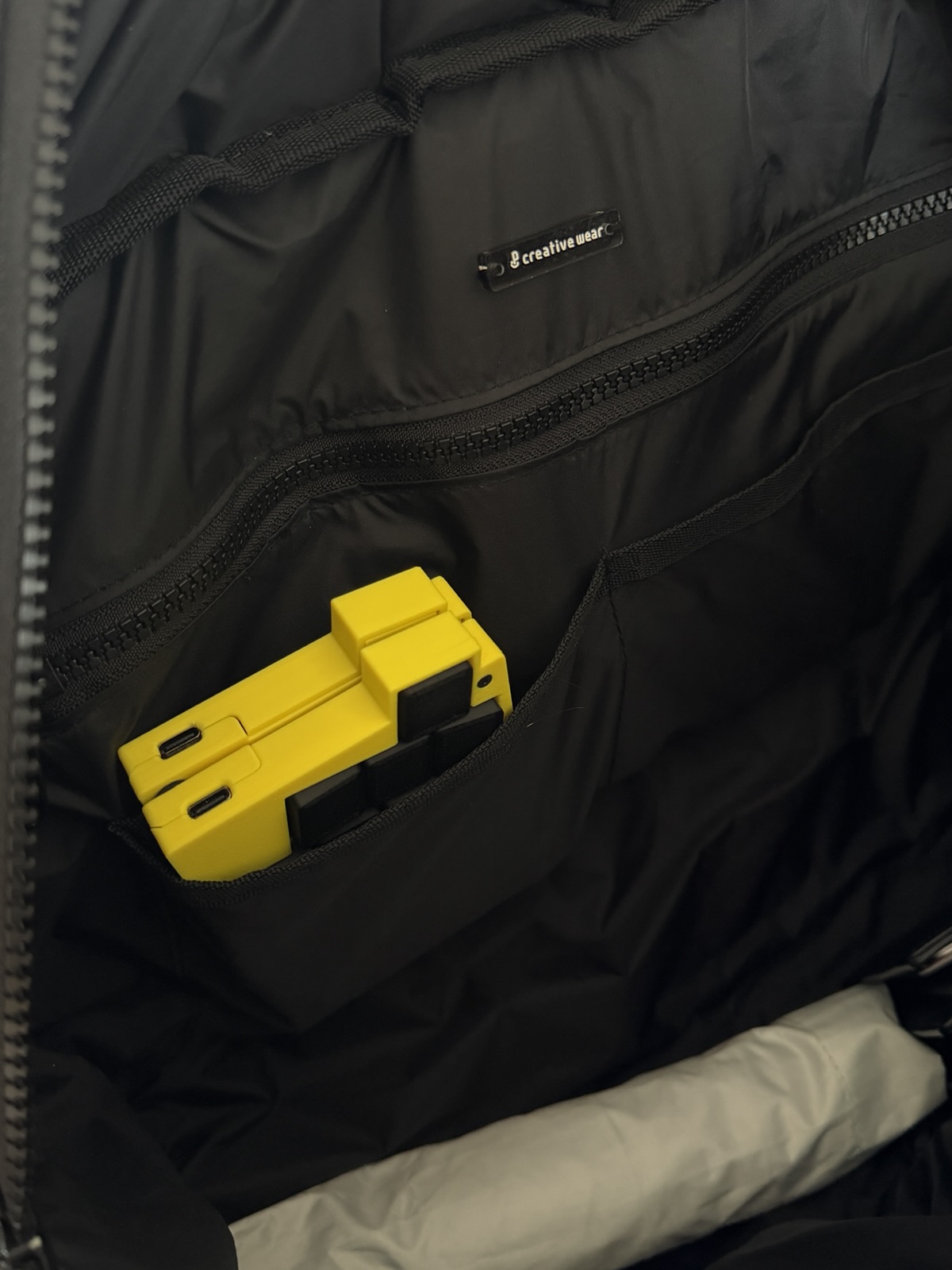
The split keyboards I found on the market were all too big to carry around, though. Then I came across TOTEM, an open-source split keyboard small enough for a backpack pocket, and decided to build one myself. Here is how it went.
- Hardware design: GEIGEIGEIST/TOTEM
- Original firmware config: GEIGEIGEIST/zmk-config-totem
- My fork, with all the changes in this post: ca110us/zmk-config-totem
Choosing the parts
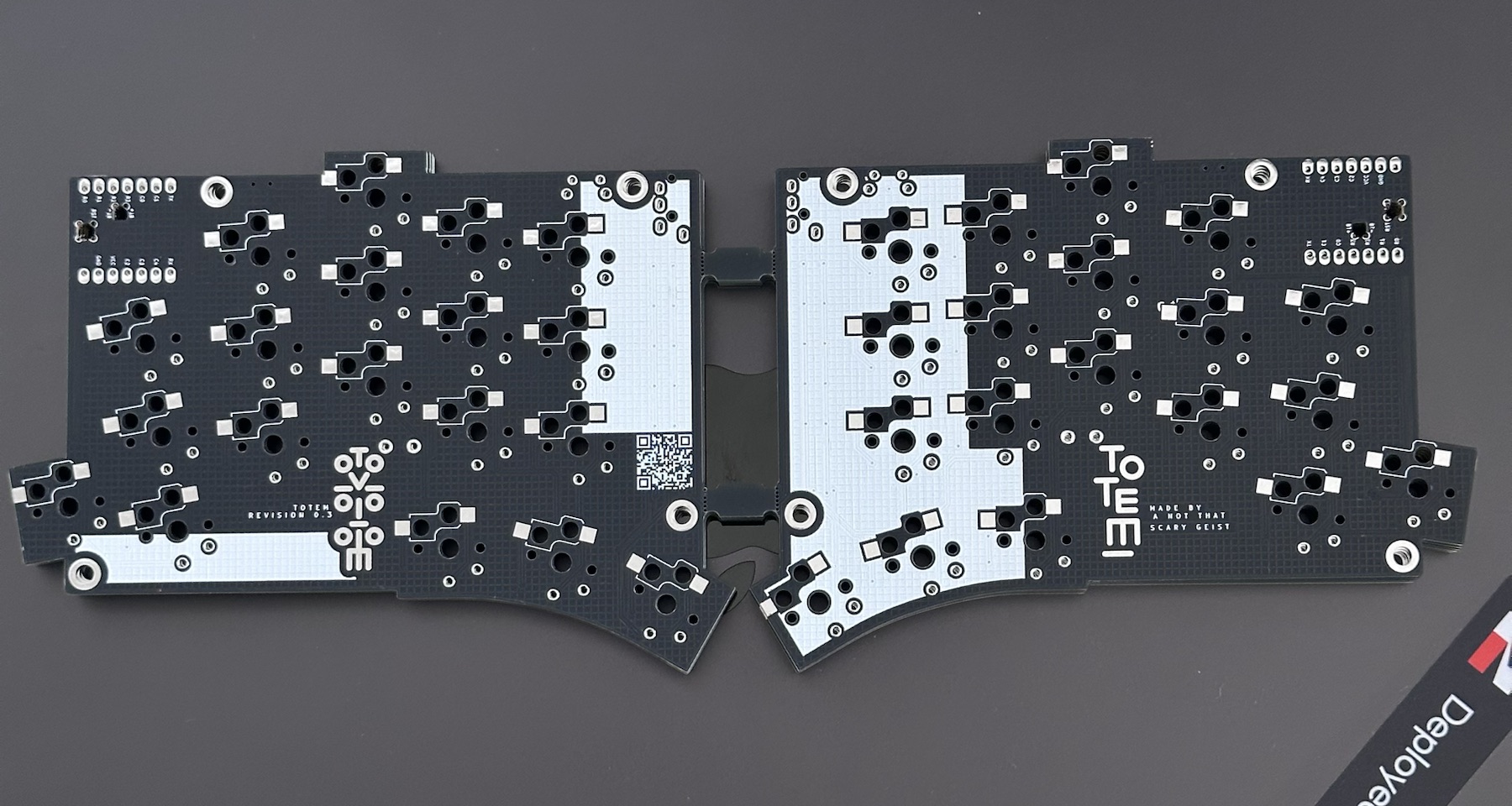
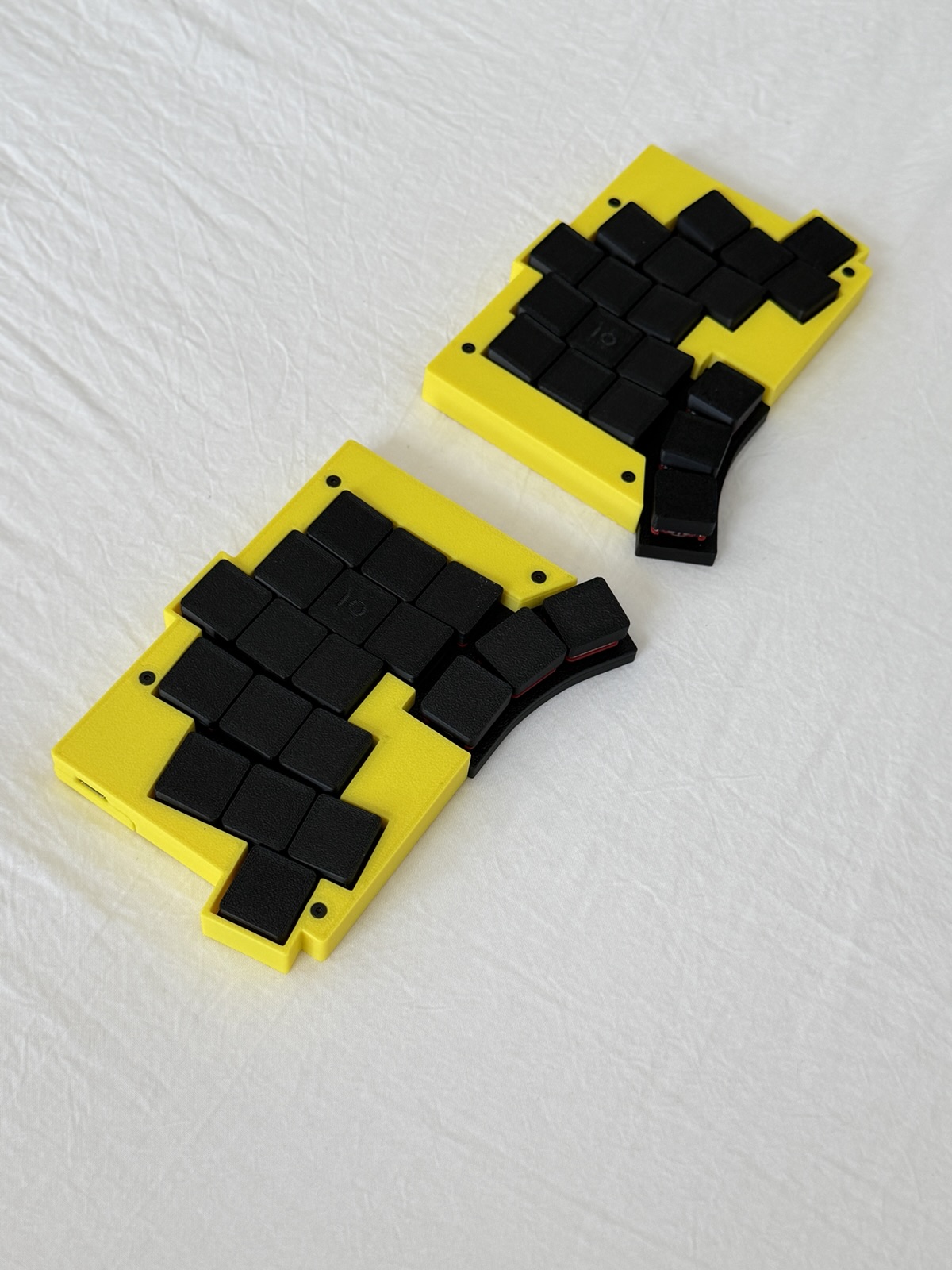
TOTEM is a 38-key, column-staggered split keyboard by GEIGEIGEIST. I built the wireless version: each half has its own Seeed XIAO nRF52840 and a small LiPo battery, and the two halves talk over Bluetooth, so there’s no cable between them.
| Part | Choice | Per keyboard |
|---|---|---|
| PCB | TOTEM v0.3, made by JLCPCB | 1 pair |
| Controller | Seeed XIAO nRF52840, no headers | 2 |
| Switches | Kailh Choc V1 Red Pro, 35 gf | 38 |
| Hot-swap sockets | Kailh CPG135001S30 | 38 |
| Diodes | 1N4148W, SOD-123 | 38 |
| Power switch | MSK-12C02 | 2 |
| Reset button | ALPS SKHLLCA010 | 2 |
| Battery | 601520 LiPo, 3.7 V, 200 mAh, with protection board | 2 |
| Hardware | M2×6 standoffs, M2×6 countersunk screws, 8 mm rubber feet | 8 / 16 / 8 |
JLCPCB’s minimum order is five boards, so I now have four spare sets lying around.
Printing the case
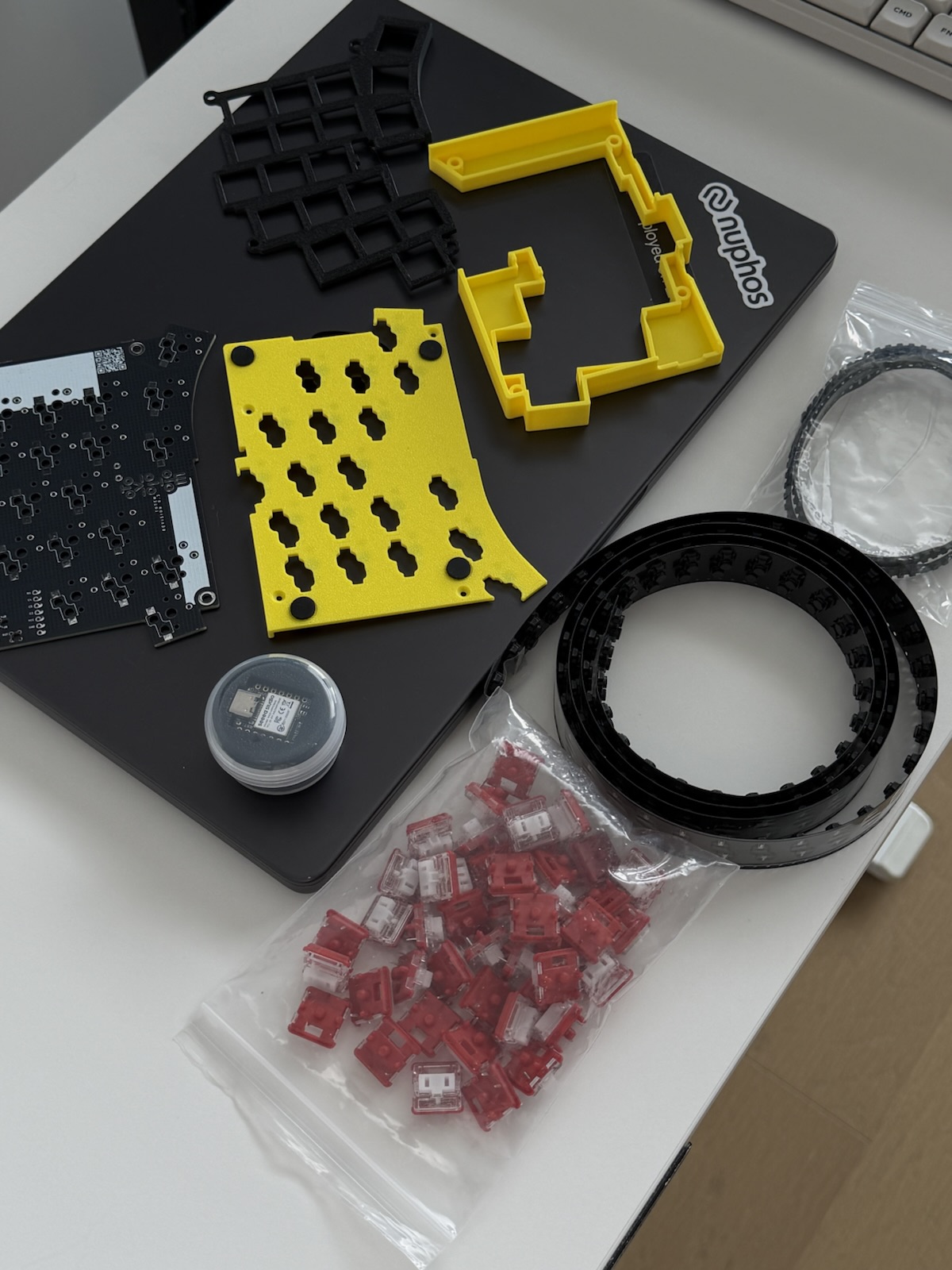
The case, the switch plates and even the keycaps are all 3D printed, on a Bambu Lab X2D. I used the hot-swap version of the bottom case and angled MOTE keycaps for Choc V1.
Funnily enough, most of the trouble came from the slicer, not the printer: the wrong number of copies, parts overlapping on the plate, a setting I forgot to change. Everything is printed in PLA, and it has held up fine. If you want something stiffer that also makes assembly easier, I’d go with a carbon-fiber filament like PETG-CF.
Soldering and testing
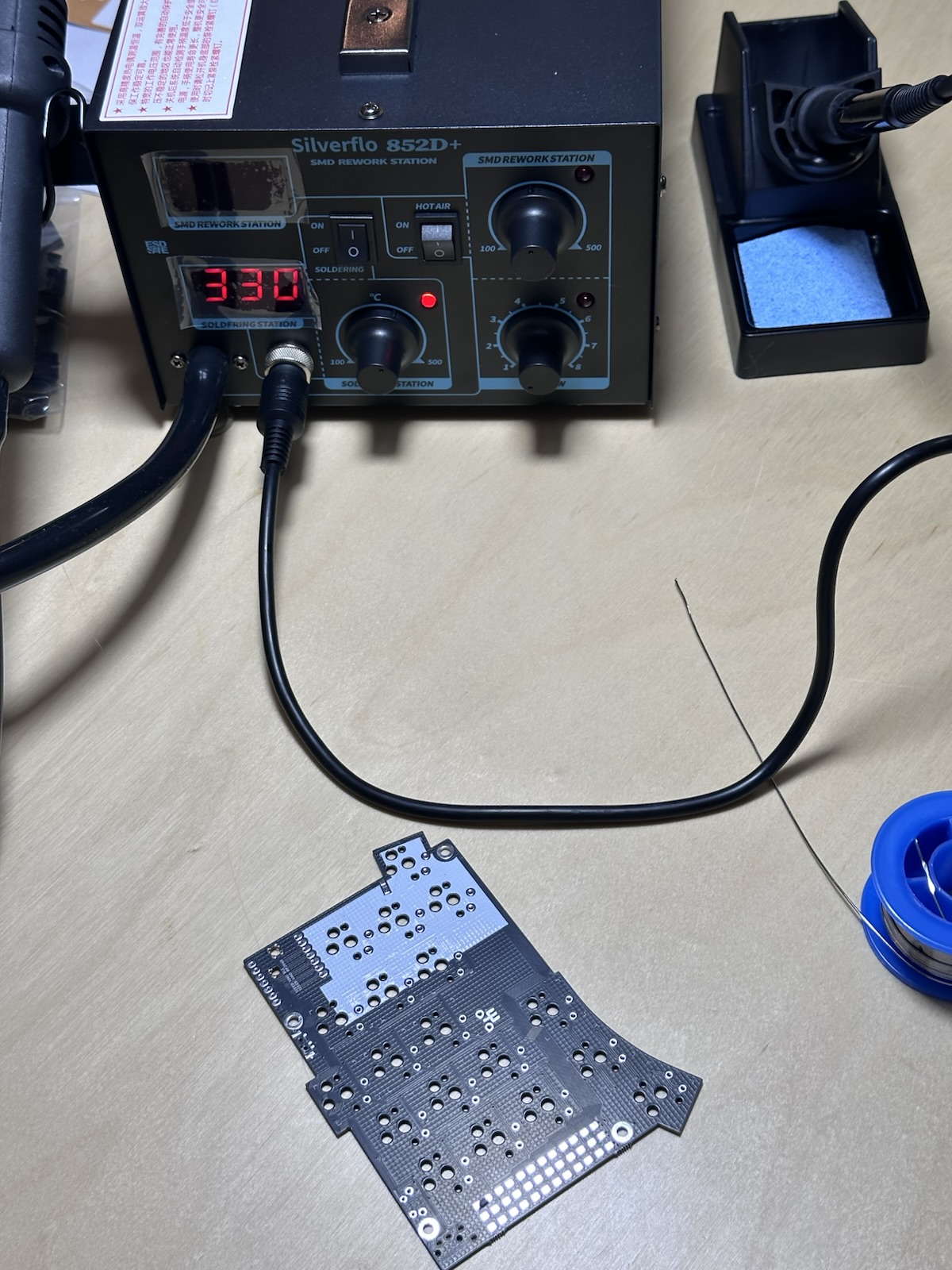
I flashed each XIAO first, just to make sure the controllers worked, and then soldered the diodes, sockets, power switch, reset button, controller and battery. The 38 diodes are tiny SOD-123 parts, so tweezers and flux were a big help.
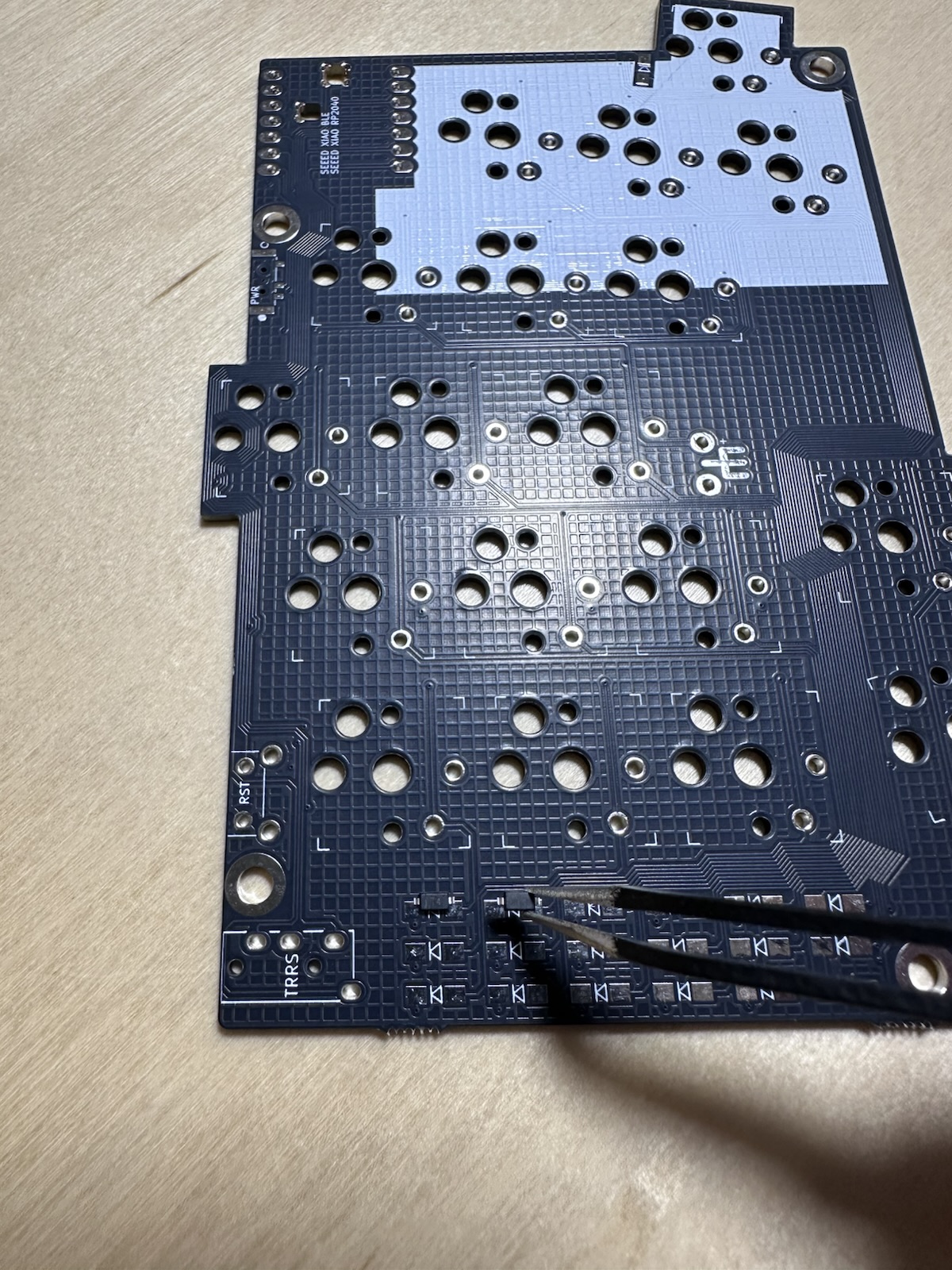
Testing before closing the case saved me twice 😅 One half wouldn’t run on battery, because its BT+ and BT− pads weren’t really connected. And one key didn’t respond: shorting its socket pads with tweezers confirmed the problem, and the diode’s reference number on the PCB pointed me straight to the bad joint.
Firmware
The keyboard runs ZMK. I set up a QWERTY layout for the Mac with home-row mods, so Cmd, Option, Ctrl and Shift live under the home row, plus thumb-key layers for navigation, symbols and Bluetooth. GitHub Actions builds the firmware on every push, and flashing is just dragging a .uf2 file onto the XIAO. I also wrote an English keymap guide (PDF) to keep next to me while learning the layout.
Getting an accurate battery reading
The battery level got stuck at around 79% and 91%, and never reached 100% no matter how long I charged it. The battery itself was fine. ZMK’s default estimate is a straight line between 3.45 V and 4.2 V, which works as a general default, but a fully charged LiPo settles a little below 4.2 V. On top of that, each XIAO reads the voltage a few percent low, by a different amount on each board.
So I wrote a small battery driver that maps the voltage onto a LiPo discharge curve, with a correction factor per board (+3.7% on the left, +1.2% on the right). Now both halves show 100% after a full charge.
Seeing both halves
macOS only shows the left half’s battery, so I had ZMK forward the right half’s level too, and built two ways to see both.
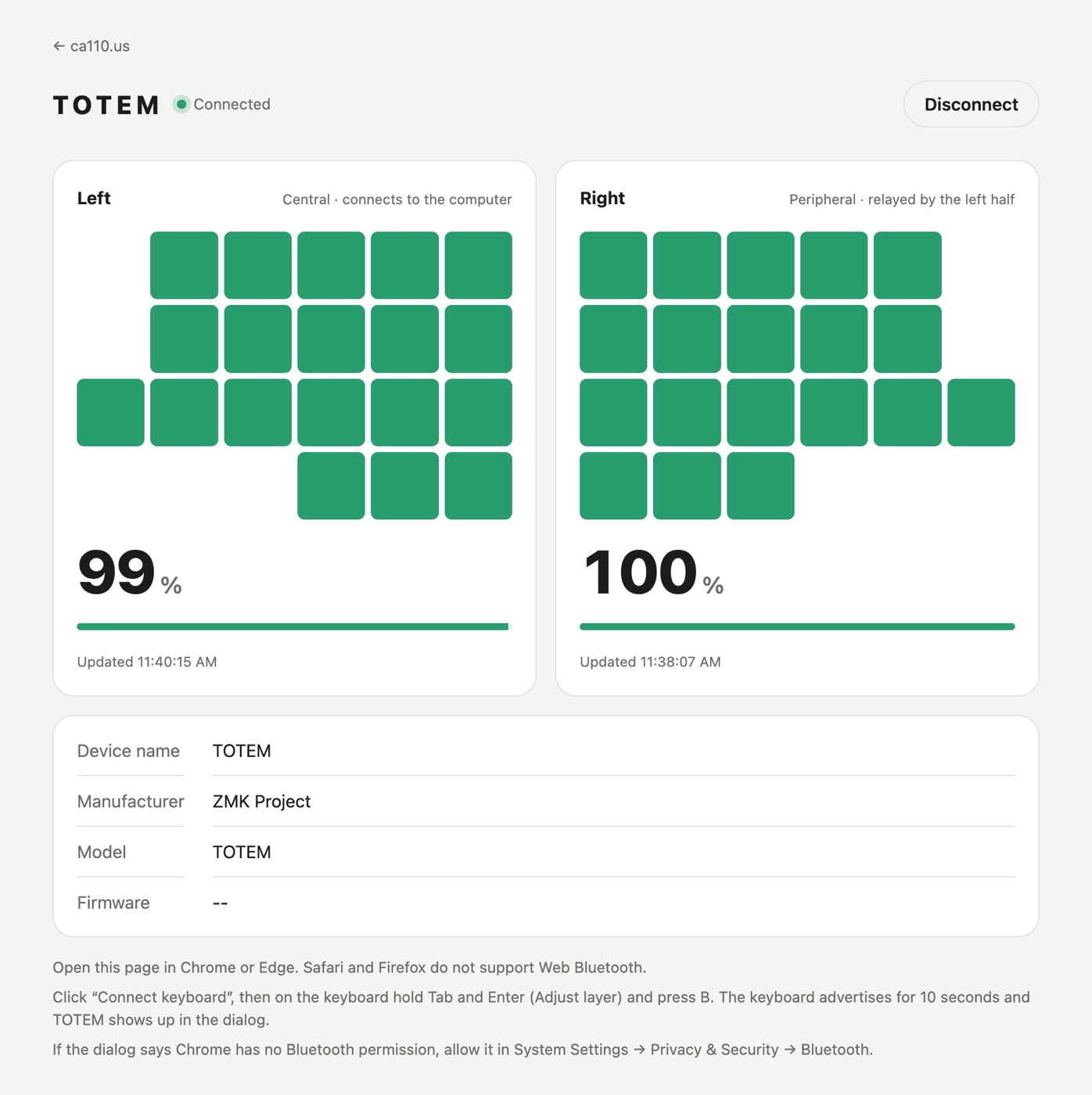
The first is a status page that reads them over Web Bluetooth. Chrome on macOS only lists devices that are advertising, and ZMK stops advertising once it’s connected, so I added a key that makes the keyboard advertise for 10 seconds without touching the existing connection.
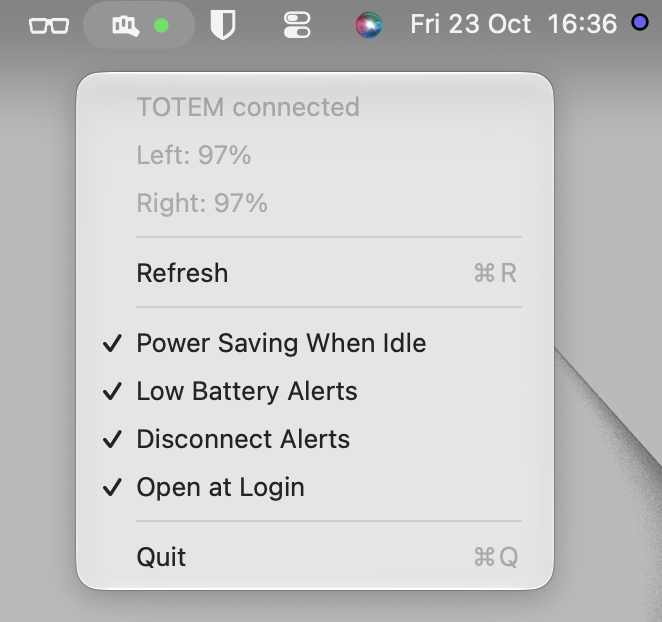
The second is a small native menu bar app for macOS. A colored dot shows whichever half is lower, and the menu lists both levels. It just listens for the keyboard’s battery notifications instead of polling, uses about 13 MB of memory, and lets me know when a half runs low or the right half loses its link.
Battery life
After a few days, the left half was draining about three times faster than the right. That’s how Bluetooth works here: the left half is the central of the link between the halves, so it has to wake up every 7.5 ms, while the right half can skip most of those events when it has nothing to send.
A longer interval would add delay to every key on the right half, and I type fast enough to care. So I made two changes that leave typing alone:
- Idle power saving. After 30 seconds without a key press, the link slows down to 30 ms, and the next key press brings it back. It can be switched off from the menu bar app.
- Deep sleep. The left half powers off after 30 minutes without use, and the right half after 60, so the right half never drops off while I’m still using the left.
It’s still too early for numbers, so I’ll see over the next few weeks how much the gap closes.
Tips if you want to build one
- Get the variant right before ordering anything. Make sure the PCB is TOTEM and not TOTEM-SHIFT, a different board from the same designer, and keep the switches, sockets and keycaps all on Choc V1. V1 and V2 parts don’t mix.
- Test everything before closing the case. Check every key with tweezers, then unplug USB and make sure each half still runs on its battery.
- Don’t take the battery percentage literally. It’s estimated from the voltage, so a full charge that never reaches 100% usually means the estimate is off, not the battery. On a wireless split, the left half always drains faster, so charge by the left.
And most importantly, my back does feel better.
One more thing: my background is in computer science, and while I knew the basics of hardware, I hadn’t gone very deep into it. I got through all of this with a lot of help from AI, so special thanks to Claude and Codex, which helped with everything from picking parts to writing the firmware. In the age of AI, building whatever you have in mind is no longer the hard part.
Big thanks also to GEIGEIGEIST for open-sourcing TOTEM, and to the ZMK project for the firmware this all builds on.